
- 2026.10.20 Export CSV from Google Sheets without losing IDs or breaking notes
- 2026.10.20 Preview Google Sheets imports by ID before adding order rows
- 2026.10.16 Apps Script triggers: 6 traps that make a script run twice, late, or not at all
- 2026.10.16 ARRAYFORMULA in 2 minutes: 5 one-liners and the traps that fill your sheet with zeros
- 2026.10.15 Google Sheets QUERY cheat sheet: 8 strings I reuse, 4 traps that return nothing You are here
- 2026.10.15 Shift Swap: ask from your phone, one tap to approve, the roster fixes itself
- 2026.10.14 XLOOKUP vs VLOOKUP in Google Sheets: the 2-minute version
- 2026.10.14 Tap Ledger: log a coffee in two taps, total it in Sheets
- 2026.10.14 A habit tracker that can leave the app: check-ins to CSV
- 2026.10.13 Your Dashboard Refreshed. Did Its Source Data?
- 2026.07.28 The Awkward Problems in Calendar-Based Attendance Tracking
- 2026.07.26 How One Shared Sheet Link Leaks Company Data
- 2026.07.23 Bad Form Auto-Replies Damage Customer Trust
- 2026.07.13 ChatGPT API Costs Quietly Leak Money If You Do Not Count Them
- 2026.06.20 Cut Your Monthly SaaS Bill: Rent vs Own Your Automation
- 2026.06.19 How Much Does Adding AI Cost? Estimate Usage Before You Build
- 2026.06.19 Automating Your Work with Google Apps Script — The Complete Guide
- 2026.06.16 How a Multi-User Inspection App Is Different
- 2026.06.10 Inventory in Google Sheets: How Far Automation Goes
- 2026.06.08 Apps Script Costs: No Separate Server, but Plan for Upkeep
- 2026.06.06 Outsource vs Build vs SaaS: Compared by Cost
Google Sheets QUERY cheat sheet: 8 strings I reuse, 4 traps that return nothing
Filter, sort, total per customer, mini pivot and date ranges with QUERY. Every formula ran in a real Google Sheet, including the ones that fail quietly.

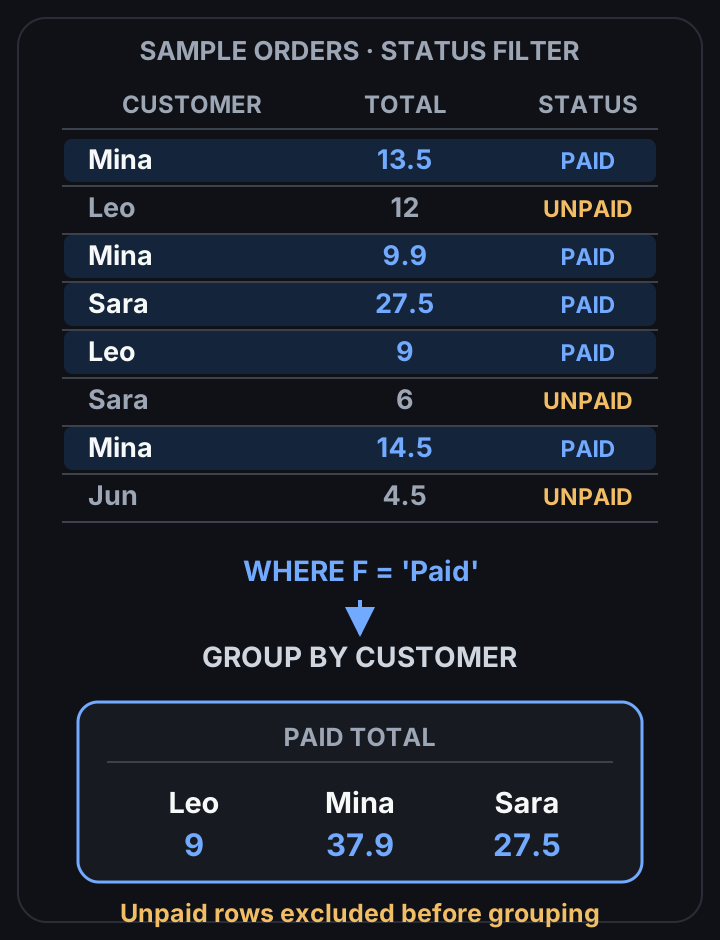
Paid orders grouped by customer; unpaid rows are excluded
 View full-size diagram
QUERY is one formula that filters, sorts, totals and pivots. The catch: when you get the query string slightly wrong, it often returns an empty table instead of an error. Learn the four quiet traps below and it’s the most useful function in Sheets.
I ran every formula here in a scratch Google Sheet on 2026-10-15. The results are what Sheets actually returned.
The test data
A tab called Orders, headers in row 1:
| Row | A: Date | B: Customer | C: Item | D: Qty | E: Total | F: Status |
|---|---|---|---|---|---|---|
| 2 | 2026-10-01 | Mina | Notebook | 3 | 13.5 | Paid |
| 3 | 2026-10-02 | Leo | Pen (blue) | 10 | 12 | Unpaid |
| 4 | 2026-10-03 | Mina | Stapler | 1 | 9.9 | Paid |
| 5 | 2026-10-05 | Sara | Desk lamp | 1 | 27.5 | Paid |
| 6 | 2026-10-06 | Leo | Notebook | 2 | 9 | Paid |
| 7 | 2026-10-07 | Sara | Pen (blue) | 5 | 6 | Unpaid |
| 8 | 2026-10-08 | Mina | Marker set | 2 | 14.5 | Paid |
| 9 | 2026-10-09 | Jun | Notebook | TBD | 4.5 | Unpaid |
Yes, TBD in the Qty column is on purpose. Someone always types that.
The shape of every QUERY
=QUERY(A1:F9, "select B, E where F = 'Paid'", 1)Three parts: the range, the query string, and how many header rows (1). Inside the string you refer to columns by letter, and text values go in single quotes.
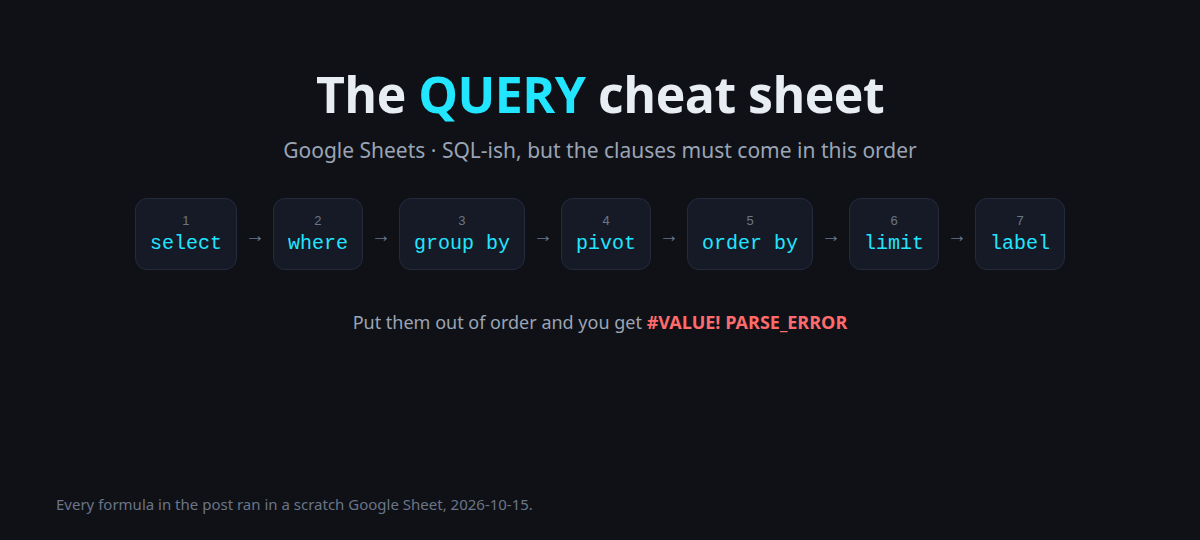
The clauses have a fixed order: select, where, group by, pivot, order by, limit, label (that’s the order in the cover image up top). I put order by before where to check, and got #VALUE! with a PARSE_ERROR. At least that one is loud.
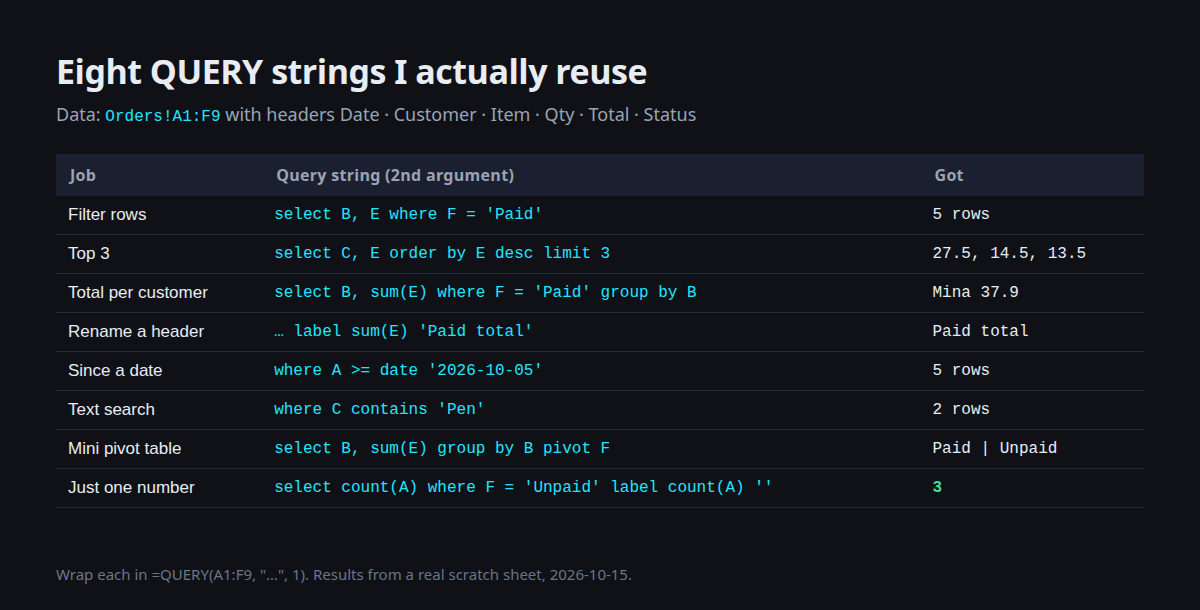
Eight strings I actually reuse
| Job | Query string | What I got |
|---|---|---|
| Filter rows | select B, E where F = 'Paid' | 5 rows: Mina 13.5, Mina 9.9, Sara 27.5, Leo 9, Mina 14.5 |
| Top 3 | select C, E order by E desc limit 3 | Desk lamp 27.5, Marker set 14.5, Notebook 13.5 |
| Total per customer | select B, sum(E) where F = 'Paid' group by B | Leo 9, Mina 37.9, Sara 27.5 |
| Nicer header | add label sum(E) 'Paid total' | header became Paid total |
| Since a date | select A, B, E where A >= date '2026-10-05' | 5 rows, Oct 5 to Oct 9 |
| Text search | select A, C where C contains 'Pen' | the two Pen (blue) rows |
| Mini pivot | select B, sum(E) group by B pivot F | one column per status: Leo 9 / 12 |
| One number | select count(A) where F = 'Unpaid' label count(A) '' | just 3, no header |
That last one is my favourite. label count(A) '' deletes the header, so the cell holds a single number you can use in other formulas.
The pivot one is a pivot table that updates itself. Mina has no unpaid orders, so her Unpaid cell came back blank, not 0.
Using a cell as the filter
Put Mina in H1, then glue it into the string:
=QUERY(A1:F9, "select B, C, E where B = '"&H1&"'", 1)That returned Mina’s three orders. The quotes are '" before and "' after: a single quote for QUERY, a double quote to end the Sheets string. Ugly, but it works.
Four traps that fail quietly
1. Dates from a cell need date and TEXT()
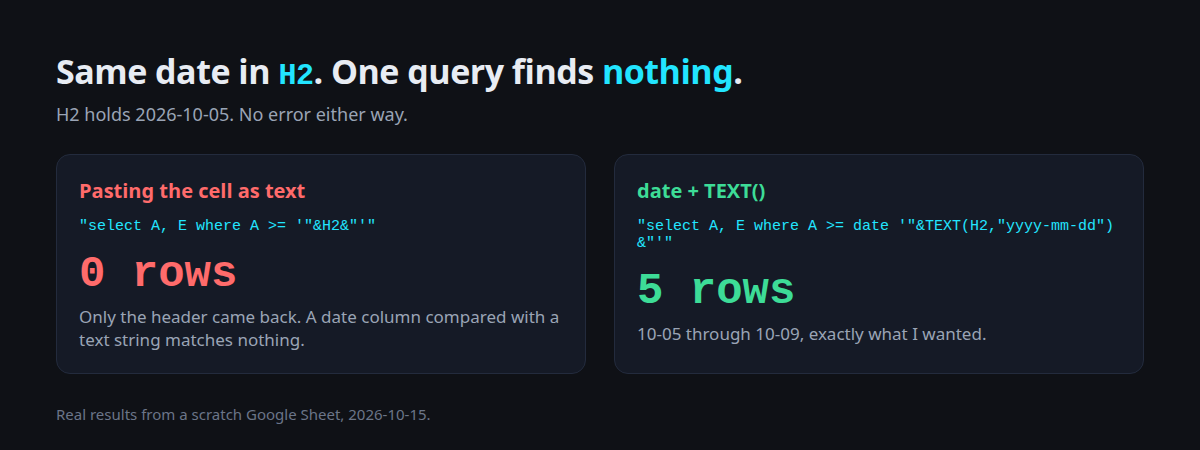
H2 holds 2026-10-05.
"select A, E where A >= '"&H2&"'"                              → header only
"select A, E where A >= date '"&TEXT(H2,"yyyy-mm-dd")&"'"      → 5 rows
The first one compares a date column with a text string, so no error and no rows. Copy the second one.
2. Text values are case-sensitive
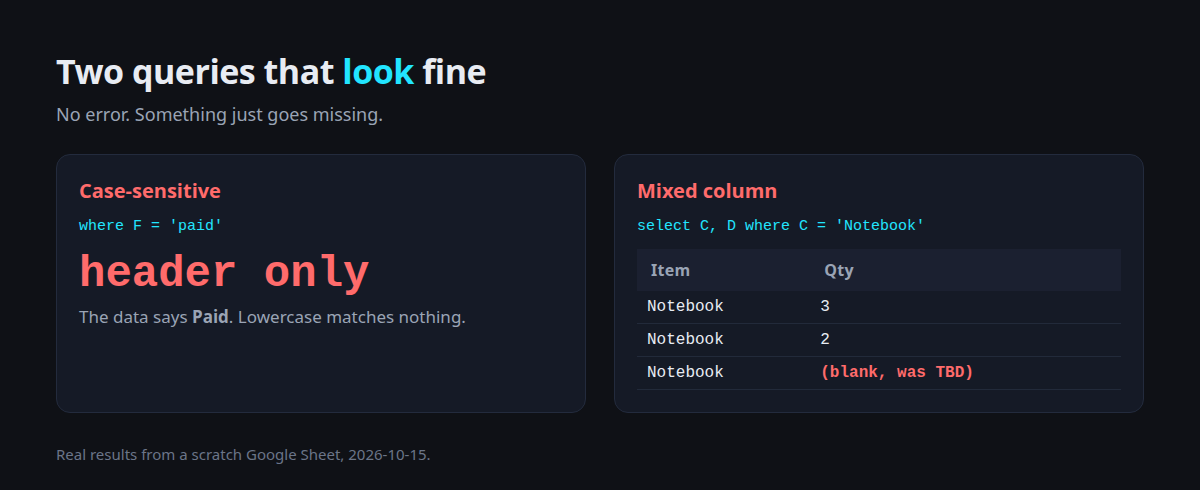
where F = 'paid' (lowercase) returned only the header. The data says Paid. If people type statuses by hand, give the column a dropdown so it’s always spelled the same.
3. A mixed column drops the odd values
select C, D where C = 'Notebook' returned 3, 2, and an empty cell for Jun’s TBD.
QUERY decides each column’s type from the majority of its values. Qty is mostly numbers, so the text TBD became blank.
The row stayed, the value vanished. Keep one type per column. If you need “unknown”, leave it empty.
4. Forgot the quotes
where F = Paid gave #VALUE! with NO_COLUMN: Paid. Without quotes, QUERY thinks Paid is a column name. Easy to spot, at least.
Bonus: Col1, Col2 when the range is in braces
If you wrap the range in {} (for example to stack two tabs), letters stop working and you use Col numbers:
=QUERY({A1:F9}, "select Col2, Col5 where Col6 = 'Unpaid'", 1)That gave Leo 12, Sara 6, Jun 4.5.
Copy-paste summary
| You want | Write |
|---|---|
| Filter | where F = 'Paid' |
| Sort + top N | order by E desc limit 3 |
| Totals per group | select B, sum(E) group by B |
| Rename header | label sum(E) 'Paid total' |
| Date range from a cell | where A >= date '"&TEXT(H2,"yyyy-mm-dd")&"' |
| Partial text | where C contains 'Pen' |
| Single number | label count(A) '' |
Ranges in {} | Col1, Col2… instead of letters |
When a QUERY suddenly shows only the header, check in this order: case, date format, quotes, mixed types. In my sheet that covered every empty result.
QUERY formulas that sometimes go blank? Send me what it does, and I’ll tell you whether it’s a formula fix or time for a small script.
- 2026.10.20 Export CSV from Google Sheets without losing IDs or breaking notes
- 2026.10.20 Preview Google Sheets imports by ID before adding order rows
- 2026.10.16 Apps Script triggers: 6 traps that make a script run twice, late, or not at all
- 2026.10.16 ARRAYFORMULA in 2 minutes: 5 one-liners and the traps that fill your sheet with zeros
- 2026.10.15 Google Sheets QUERY cheat sheet: 8 strings I reuse, 4 traps that return nothing You are here
- 2026.10.15 Shift Swap: ask from your phone, one tap to approve, the roster fixes itself
- 2026.10.14 XLOOKUP vs VLOOKUP in Google Sheets: the 2-minute version
- 2026.10.14 Tap Ledger: log a coffee in two taps, total it in Sheets
- 2026.10.14 A habit tracker that can leave the app: check-ins to CSV
- 2026.10.13 Your Dashboard Refreshed. Did Its Source Data?
- 2026.07.28 The Awkward Problems in Calendar-Based Attendance Tracking
- 2026.07.26 How One Shared Sheet Link Leaks Company Data
- 2026.07.23 Bad Form Auto-Replies Damage Customer Trust
- 2026.07.13 ChatGPT API Costs Quietly Leak Money If You Do Not Count Them
- 2026.06.20 Cut Your Monthly SaaS Bill: Rent vs Own Your Automation
- 2026.06.19 How Much Does Adding AI Cost? Estimate Usage Before You Build
- 2026.06.19 Automating Your Work with Google Apps Script — The Complete Guide
- 2026.06.16 How a Multi-User Inspection App Is Different
- 2026.06.10 Inventory in Google Sheets: How Far Automation Goes
- 2026.06.08 Apps Script Costs: No Separate Server, but Plan for Upkeep
- 2026.06.06 Outsource vs Build vs SaaS: Compared by Cost