
- 2026.10.24 Apps Script Spreadsheet Updates: Read Once, Write Once You are here
- 2026.10.20 Export CSV from Google Sheets without losing IDs or breaking notes
- 2026.10.20 Preview Google Sheets imports by ID before adding order rows
- 2026.10.16 Apps Script triggers: 6 traps that make a script run twice, late, or not at all
- 2026.10.16 ARRAYFORMULA in 2 minutes: 5 one-liners and the traps that fill your sheet with zeros
- 2026.10.15 Google Sheets QUERY cheat sheet: 8 strings I reuse, 4 traps that return nothing
- 2026.10.15 Shift Swap: ask from your phone, one tap to approve, the roster fixes itself
- 2026.10.14 XLOOKUP vs VLOOKUP in Google Sheets: the 2-minute version
- 2026.10.14 Tap Ledger: log a coffee in two taps, total it in Sheets
- 2026.10.14 A habit tracker that can leave the app: check-ins to CSV
- 2026.10.13 Your Dashboard Refreshed. Did Its Source Data?
- 2026.07.28 The Awkward Problems in Calendar-Based Attendance Tracking
- 2026.07.26 How One Shared Sheet Link Leaks Company Data
- 2026.07.23 Bad Form Auto-Replies Damage Customer Trust
- 2026.07.13 ChatGPT API Costs Quietly Leak Money If You Do Not Count Them
- 2026.06.20 Cut Your Monthly SaaS Bill: Rent vs Own Your Automation
- 2026.06.19 How Much Does Adding AI Cost? Estimate Usage Before You Build
- 2026.06.19 Automating Your Work with Google Apps Script — The Complete Guide
- 2026.06.16 How a Multi-User Inspection App Is Different
- 2026.06.10 Inventory in Google Sheets: How Far Automation Goes
- 2026.06.08 Apps Script Costs: No Separate Server, but Plan for Upkeep
- 2026.06.06 Outsource vs Build vs SaaS: Compared by Cost
Apps Script Spreadsheet Updates: Read Once, Write Once
Read a bounded order-intake range once, validate quantities in JavaScript, and write a same-sized result without changing the source IDs.

Reading a quantity from Sheets, calculating a result, and writing it back inside every loop iteration mixes JavaScript work with repeated Spreadsheet service calls. As the row count grows, those calls can become the bottleneck. The loop itself is not the problem: where the reads and writes happen matters.
Google’s batch operations guidance recommends reading data into an array, working on it in memory, and writing the result in one operation rather than alternating reads and writes. Apps Script has caching, so counting method calls is not a measurement of underlying network requests. This note promises no speed multiplier or specific runtime.
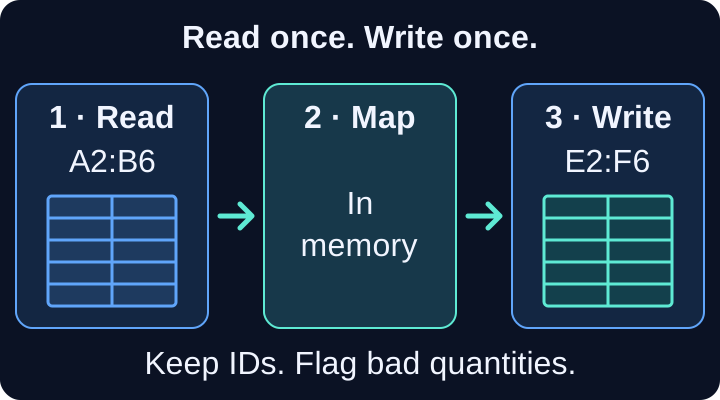
One bounded input read feeds a pure transformation; one same-sized output write leaves the source range untouched. View the full-size diagram.
What changes when you batch
| Approach | Read/write pattern | Where row logic runs |
|---|---|---|
| Per-row service calls | Read and write repeatedly inside the loop | Between Spreadsheet service calls |
| This bounded batch | One getValues() and one setValues() for five rows | In a JavaScript array before writing |
getValues() returns a rectangular, two-dimensional array indexed by row and then column. Cells can contain numbers, strings, booleans, or dates; empty cells are represented by empty strings. setValues(Object[][]) requires an array whose dimensions match the destination range. Here both rectangles are five rows by two columns.
Input contract: synthetic order intake only
Use a disposable spreadsheet with a tab named Order intake. This example is deliberately fixed to five data rows, not an entire sheet.
- Put
Order IDandQuantityin A1 and B1. A2:B6 is the input; the header is not read. - Store every order ID as text containing digits only, such as the string
00127. Set the ID cells to plain text before entering the IDs. A numeric cell merely formatted to display leading zeroes does not meet this contract. The code rejects non-string IDs rather than pretending it can recover lost zeroes; it never converts IDs withNumber()or trims them. - A valid quantity is a JavaScript number that is a non-negative safe integer. Zero is valid. Text such as
"3"is invalid under this deliberately strict contract, even though it looks numeric. Negative numbers, fractions, booleans, dates, and other non-numeric values are invalid too. - Empty or whitespace-only quantities become
MISSING QUANTITY. The pure function also treatsnullandundefinedas missing; a blank cell fromgetValues()arrives as"". Invalid quantities becomeINVALID QUANTITY, never a substitute zero. - Reserve E2:F6 as a separate output range, with
Order IDandStatusin E1 and F1. Keep the destination ID cells plain text too. Each run overwrites E2:F6, not A2:B6; headers and other cells are not written. Use unmerged, writable destination cells with no results you need to retain.
For the five synthetic source rows below, enter the quantities as indicated: a number 2, an empty cell, the text two, a number 0, and a number -1. The IDs are all strings.
00127,2→00127,READY: 200128, blank →00128,MISSING QUANTITY00129,two→00129,INVALID QUANTITY00130,0→00130,READY: 000131,-1→00131,INVALID QUANTITY
The status replaces the quantity only in the output; the original value remains in column B for review. If your next step exports IDs to CSV, the CSV ID preservation note covers the separate import/export problem.
Complete Apps Script example
Paste this code into a spreadsheet-bound Apps Script project and run updateOrderIntake against the disposable tab. The downloadable JavaScript contains exactly this complete code, without module syntax or dependencies.
function transformOrderRows(rows) {
  if (!Array.isArray(rows)) {
    throw new Error("Expected an array of order rows");
  }

  return rows.map((row, index) => {
    if (!Array.isArray(row) || row.length !== 2) {
      throw new Error(`Input row ${index + 1} must have exactly two cells`);
    }

    const [orderId, quantity] = row;
    if (typeof orderId !== "string" || !/^\d+$/u.test(orderId)) {
      throw new Error(`Input row ${index + 1} needs a digit-only text order ID`);
    }

    let status;
    if (quantity == null || (typeof quantity === "string" && quantity.trim() === "")) {
      status = "MISSING QUANTITY";
    } else if (typeof quantity !== "number" || !Number.isSafeInteger(quantity) || quantity < 0) {
      status = "INVALID QUANTITY";
    } else {
      status = `READY: ${quantity}`;
    }

    return [orderId, status];
  });
}

function updateOrderIntake() {
  const spreadsheet = SpreadsheetApp.getActiveSpreadsheet();
  if (!spreadsheet) throw new Error("Open the bound spreadsheet first");
  const sheet = spreadsheet.getSheetByName("Order intake");
  if (!sheet) throw new Error('Missing sheet: "Order intake"');

  const rows = sheet.getRange("A2:B6").getValues();
  const output = transformOrderRows(rows);
  sheet.getRange("E2:F6").setValues(output);
}
transformOrderRows makes new rows without mutating its input or calling a service. It retains each ID string and returns exactly two cells for every input row. Malformed rows or invalid IDs throw before the adapter reaches the write. Missing and invalid quantities are row-level statuses, so they remain visible alongside valid orders rather than stopping the batch.
The adapter only locates the tab, reads A2:B6, calls the transformation, and writes E2:F6. The digit-only ID restriction also keeps formula-like strings out of that output column: Google’s setValues reference warns that values beginning with = are interpreted as formulas. This is not a general-purpose sanitizer for arbitrary customer text.
Bound the work before increasing the range
Reading a whole sheet is not a requirement of batching. Start with the rectangle the task actually needs. When a sheet is large, rows are wide, or intermediate arrays make the memory footprint uncertain, bounded chunks are safer than loading everything at once. Google’s best practices also recommends splitting tasks that exceed execution time limits.
A chunked version would read one bounded rectangle, transform it, and write the matching output rectangle before advancing. That means one read and one write per chunk, not one for the whole job. Keep source and destination row offsets aligned, record progress only after a successful chunk write, and design retries so rewriting a chunk does not duplicate work. The example above does not implement chunking, continuation, or concurrent-edit coordination; do not simply expand its range to an unbounded sheet.
Batching reduces repeated service interactions. It does not remove Google quotas, make a large job fit into memory, guarantee a particular runtime, or prevent someone from editing source cells after the read. Local mocked checks cover the transformation and adapter call pattern; this example has not been tested against live Google Sheets.
For the broader workflow context, see the Apps Script automation guide.
Bring a small, sanitized workflow
Send a workflow description with the current steps, which cells should stay untouched, and a sanitized sample with private details removed. Include what should happen when a quantity is missing or invalid so those rules are explicit before automation replaces manual edits.
- 2026.10.24 Apps Script Spreadsheet Updates: Read Once, Write Once You are here
- 2026.10.20 Export CSV from Google Sheets without losing IDs or breaking notes
- 2026.10.20 Preview Google Sheets imports by ID before adding order rows
- 2026.10.16 Apps Script triggers: 6 traps that make a script run twice, late, or not at all
- 2026.10.16 ARRAYFORMULA in 2 minutes: 5 one-liners and the traps that fill your sheet with zeros
- 2026.10.15 Google Sheets QUERY cheat sheet: 8 strings I reuse, 4 traps that return nothing
- 2026.10.15 Shift Swap: ask from your phone, one tap to approve, the roster fixes itself
- 2026.10.14 XLOOKUP vs VLOOKUP in Google Sheets: the 2-minute version
- 2026.10.14 Tap Ledger: log a coffee in two taps, total it in Sheets
- 2026.10.14 A habit tracker that can leave the app: check-ins to CSV
- 2026.10.13 Your Dashboard Refreshed. Did Its Source Data?
- 2026.07.28 The Awkward Problems in Calendar-Based Attendance Tracking
- 2026.07.26 How One Shared Sheet Link Leaks Company Data
- 2026.07.23 Bad Form Auto-Replies Damage Customer Trust
- 2026.07.13 ChatGPT API Costs Quietly Leak Money If You Do Not Count Them
- 2026.06.20 Cut Your Monthly SaaS Bill: Rent vs Own Your Automation
- 2026.06.19 How Much Does Adding AI Cost? Estimate Usage Before You Build
- 2026.06.19 Automating Your Work with Google Apps Script — The Complete Guide
- 2026.06.16 How a Multi-User Inspection App Is Different
- 2026.06.10 Inventory in Google Sheets: How Far Automation Goes
- 2026.06.08 Apps Script Costs: No Separate Server, but Plan for Upkeep
- 2026.06.06 Outsource vs Build vs SaaS: Compared by Cost