
- 2026.11.08 Job site daily report app: capture work before the drive home
- 2026.11.08 Multi-location inventory spreadsheet: stop missing transfers
- 2026.11.06 Reconcile marketplace payouts with your orders in Google Sheets You are here
- 2026.11.01 What to automate first in a small business office: pick one task
- 2026.10.31 Hiring someone to automate a spreadsheet: 5 questions before you sign
- 2026.10.29 Same order submitted twice at once? Stop duplicate rows in Sheets
- 2026.10.24 Slow Google Sheets script on order intake? Read once, write once
- 2026.10.20 Google Sheets CSV export drops leading zeros: keep IDs intact
- 2026.10.20 Importing orders into Google Sheets without duplicate rows
- 2026.10.16 Google Sheets automation sent the email twice? 6 trigger traps
- 2026.10.16 Stop dragging formulas down in Google Sheets (ARRAYFORMULA)
- 2026.10.15 Filter, total and sort a Google Sheet with one formula (QUERY)
- 2026.10.15 Shift swaps from a phone: one approval, and the roster updates
- 2026.10.14 Google Sheets lookup shows the wrong value: VLOOKUP vs XLOOKUP
- 2026.10.14 Expense app that logs a coffee in two taps and totals in Sheets
- 2026.10.14 Daily check-in app with CSV export you can total in Google Sheets
- 2026.10.13 Stale data on your dashboard: when 'updated' doesn't mean fresh
- 2026.07.28 Tracking staff attendance in Google Calendar: where records break
- 2026.07.26 Google Sheet shared by link: how company data quietly leaks
- 2026.07.23 Form auto-reply emails that annoy customers, and how to fix them
- 2026.07.13 ChatGPT API bill higher than expected? Where the cost leaks
- 2026.06.20 Monthly SaaS bill for a simple workflow: rent it or own a tool?
- 2026.06.19 Adding AI to a work app: what it costs each month, and who pays
- 2026.06.19 Automate repetitive office work in Google Sheets with Apps Script
- 2026.06.16 Field inspection app for a small team: paper checklist to phone
- 2026.06.10 Inventory tracking in Google Sheets for one store: where it stops
- 2026.06.08 Is Google Sheets automation free? No server bill, but plan upkeep
- 2026.06.06 Outsource, DIY or SaaS for one workflow: which costs less?
Reconcile marketplace payouts with your orders in Google Sheets
Reconcile marketplace payouts with your order records in Google Sheets: match each batch, keep partial refunds, flag duplicate lines and send what's left to a person.

The marketplace paid out less than your orders add up to, and the difference is buried somewhere in refunds, fees and a line that appears twice. Checking it row by row is slow and easy to get wrong.
A Google Sheet can organize a batch reconciliation: compare your order records with a marketplace’s payout events and make exceptions visible. It does not prove a bank transfer, replace bookkeeping, or guarantee real-time inventory or accounting accuracy.
Use this approach when someone can confirm the export fields and review the exceptions. If the source cannot identify events reliably, or the workflow needs immediate updates and coordinated writes, assess a different design rather than treating a sheet as the whole shop system. For settlement sheets built this way, see work automation.
Preserve the exports before matching
Keep untouched copies of the order and payout exports. Record the source account, export period, time zone, filters, and whether the files include pending events. An order date and a payout date are not necessarily the same: a refund can appear in a later payout period. Compare records covering the same event scope, not a lifetime order total against an unrelated payout window.
Confirm the platform’s definitions before mapping anything. A field called “amount” might be gross sales, net proceeds, or a payout total. Identify gross, fees, refunds, fee credits, and other adjustments so you do not subtract something already deducted. Never assume a marketplace refunds fees when it refunds a sale.
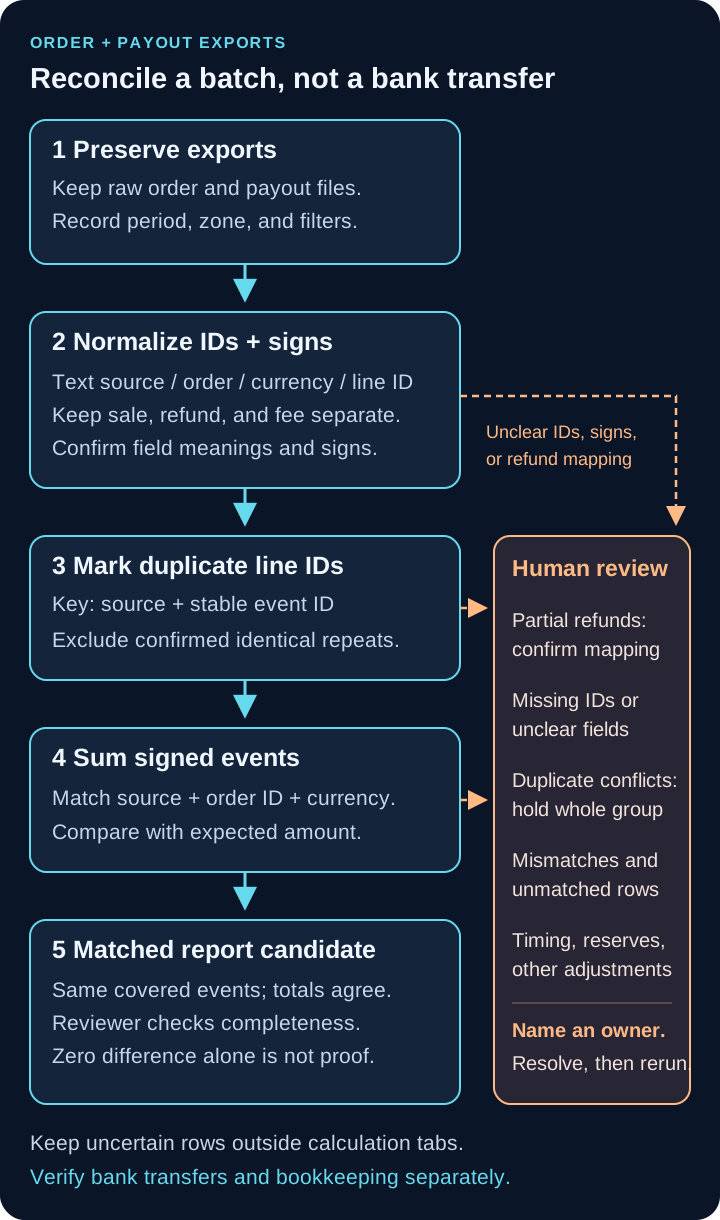
Preserve exports → normalize IDs and signs → mark duplicate line IDs → sum by source, order, and currency. Review partial refunds and exceptions before accepting a matched report; matching totals do not prove a bank transfer. View the full-size diagram.
Keep order identity separate from event identity
Use these matching keys:
- Source/channel: include the shop or marketplace account in this namespace if accounts can reuse IDs.
- Stable order ID: links an event to its order; a customer name is not a matching key.
- Currency: match like with like. Do not sum different currencies or silently convert them.
- Stable payout-line/event ID: distinguishes a sale, each partial refund, and each adjustment. Confirm that this ID is unique within the chosen source namespace.
Set ID columns to Plain text before importing, so an ID such as 0007 keeps its leading zeros. Preserve spelling and case; do not “clean” different IDs into the same value. If any required ID is missing, a field’s meaning is unclear, or uniqueness cannot be confirmed, keep the row in a human-review list outside the calculation tabs. Do not guess an ID from a row number, date, or amount.
Keep the original sale row. Add each partial refund or adjustment as a separate signed ledger event, using its source ID. A sale increases the amount; a refund or fee charge reduces it; a documented fee credit increases it. Preserve the raw values alongside the mapping notes.
Reserves, reserve releases, chargebacks, tax or shipping adjustments, and currency conversion may need different treatment. Preserve each event and have a reviewer confirm its meaning and scope. An account-level event without an order ID belongs in a separate batch review, not arbitrarily on an order. The simple expected-amount formula below does not cover every adjustment; hold affected orders until the expected calculation is explicitly defined.
A hypothetical USD batch
All values and IDs below are fictional. There is no customer data. The hypothetical order has gross sales of USD 120.00, a partial refund of USD 30.00, and net fees of USD 3.60. Here “net fees” means fee charges less documented fee credits, not an assumed fee-refund policy. The expected amount is USD 86.40.
Create tabs named Orders and Payouts, with headers in row 1. Only reviewed rows with valid keys and understood field mappings belong in these tabs. Prepare the order-side figures from independently checked order and fee records for the same event scope, not by copying the payout sum you are trying to check.
Orders columns A–I
Refunds in E are positive deductions. Net fees in F are charges less confirmed credits; a net credit can be negative.
| A source | B order ID | C currency | D gross | E refunds | F net fees | G expected amount | H settlement lines | I difference |
|---|---|---|---|---|---|---|---|---|
| DemoMarket | 0007 | USD | 120.00 | 30.00 | 3.60 | 86.40 | 86.40 | 0.00 |
G–I show the results of the formulas below, not values to type over them.
Payouts columns A–F
Each refund stays separate from the original sale. The last row deliberately repeats the refund’s line ID and amount.
| A source | B line ID | C order ID | D currency | E signed net effect | F duplicate marker |
|---|---|---|---|---|---|
| DemoMarket | evt-sale-01 | 0007 | USD | +120.00 | |
| DemoMarket | evt-refund-01 | 0007 | USD | -30.00 | |
| DemoMarket | evt-fee-01 | 0007 | USD | -3.60 | |
| DemoMarket | evt-refund-01 | 0007 | USD | -30.00 | Duplicate line ID |
Enter E as numbers, not text containing a currency symbol. The displayed plus sign means a positive amount.
Copy the formulas
These formulas use English function names and comma separators; your Sheets locale may require semicolons.
In Payouts!F2, then fill down every imported payout row:
=IF(OR(A2="",B2=""),"",IF(COUNTIFS($A$2:A2,A2,$B$2:B2,B2)>1,"Duplicate line ID",""))This uses the expanding source-and-line-ID range to flag later occurrences. Google documents the multiple criteria in COUNTIFS.
A blank marker is not a validity check: missing IDs must already be held out. Review every repeated ID. An identical reimport can be excluded; if the same ID has different order, currency, or amount data, hold the whole group, including the first row, for review. The formula does not decide which conflicting version is right. Do not approve the report while duplicate review is unresolved.
In Orders!G2:
=D2-E2-F2In Orders!H2:
=SUMIFS(Payouts!$E$2:$E$5,Payouts!$A$2:$A$5,$A2,Payouts!$C$2:$C$5,$B2,Payouts!$D$2:$D$5,$C2,Payouts!$F$2:$F$5,"<>Duplicate line ID")Google’s SUMIFS reference explains the sum range and criteria pairs. Here they match source + order ID + currency and exclude flagged repeat lines. For this four-row example, the ranges end at row 5. Extend all four ranges to the same final row when a batch has more payout lines.
In Orders!I2:
=G2-H2Fill G–I down the order rows. These criteria formulas are not a general ID parser: if keys contain wildcard characters (*, ?, ~) or differ only by letter case, hold them for a tested matching rule rather than assuming this template distinguishes them.
For the hypothetical data, the last payout row is flagged and excluded: 120.00 − 30.00 − 3.60 = 86.40, so the difference is 0.00. Counting the repeated refund would incorrectly produce 56.40. A further partial refund must have its own event ID and signed amount, not reuse the first refund ID or overwrite the sale.
This sample is local formula validation only. No live marketplace, bank, or Google account was used.
Review before calling the batch matched
A zero difference only says the included numbers agree. An incomplete export can still balance, and a missing order can disappear from an order-based report entirely.
Have a named person check:
- Export periods, filters, pending events, and later refunds are accounted for.
- Duplicate groups are resolved, including conflicting first occurrences.
- Payout rows without a matching source/order/currency are listed separately; an order-level sum does not find them for you.
- Missing payouts, timing differences, reserves, chargebacks, and other adjustments have an explanation or remain open exceptions. Do not force a balance with an unexplained adjustment.
- Any bank transfer is verified separately against bank records, with bookkeeping handled separately too.
Download the editable reconciliation checklist. It asks for process notes and review decisions, not private customer data.
Discuss your reconciliation workflow
Send a sanitized sample or a short workflow description. Include the export headers, how refunds and adjustments appear, and who reviews exceptions. Replace real IDs and amounts with fictional values; remove names, emails, addresses, credentials, and other private or confidential data.
Frequently asked questions
- Does a matching sheet prove the money reached the bank?
- No. It shows that the included records agree under the chosen mapping. Check export completeness and timing separately, and verify the bank transfer against bank records.
- How should I record a partial refund?
- Keep the original sale and add each refund as a separate signed event with its own stable source line ID. Confirm the platform's field meanings and fee credits; never assume a refund reverses the fee.
- What happens when the export has no stable payout-line ID?
- Keep the raw row and send it to human review outside the calculation tabs. Do not invent an ID from its row number, date, or amount.
- 2026.11.08 Job site daily report app: capture work before the drive home
- 2026.11.08 Multi-location inventory spreadsheet: stop missing transfers
- 2026.11.06 Reconcile marketplace payouts with your orders in Google Sheets You are here
- 2026.11.01 What to automate first in a small business office: pick one task
- 2026.10.31 Hiring someone to automate a spreadsheet: 5 questions before you sign
- 2026.10.29 Same order submitted twice at once? Stop duplicate rows in Sheets
- 2026.10.24 Slow Google Sheets script on order intake? Read once, write once
- 2026.10.20 Google Sheets CSV export drops leading zeros: keep IDs intact
- 2026.10.20 Importing orders into Google Sheets without duplicate rows
- 2026.10.16 Google Sheets automation sent the email twice? 6 trigger traps
- 2026.10.16 Stop dragging formulas down in Google Sheets (ARRAYFORMULA)
- 2026.10.15 Filter, total and sort a Google Sheet with one formula (QUERY)
- 2026.10.15 Shift swaps from a phone: one approval, and the roster updates
- 2026.10.14 Google Sheets lookup shows the wrong value: VLOOKUP vs XLOOKUP
- 2026.10.14 Expense app that logs a coffee in two taps and totals in Sheets
- 2026.10.14 Daily check-in app with CSV export you can total in Google Sheets
- 2026.10.13 Stale data on your dashboard: when 'updated' doesn't mean fresh
- 2026.07.28 Tracking staff attendance in Google Calendar: where records break
- 2026.07.26 Google Sheet shared by link: how company data quietly leaks
- 2026.07.23 Form auto-reply emails that annoy customers, and how to fix them
- 2026.07.13 ChatGPT API bill higher than expected? Where the cost leaks
- 2026.06.20 Monthly SaaS bill for a simple workflow: rent it or own a tool?
- 2026.06.19 Adding AI to a work app: what it costs each month, and who pays
- 2026.06.19 Automate repetitive office work in Google Sheets with Apps Script
- 2026.06.16 Field inspection app for a small team: paper checklist to phone
- 2026.06.10 Inventory tracking in Google Sheets for one store: where it stops
- 2026.06.08 Is Google Sheets automation free? No server bill, but plan upkeep
- 2026.06.06 Outsource, DIY or SaaS for one workflow: which costs less?