
- 2026.11.08 Job site daily report app: capture work before the drive home
- 2026.11.08 Multi-location inventory spreadsheet: stop missing transfers
- 2026.11.06 Reconcile marketplace payouts with your orders in Google Sheets
- 2026.11.01 What to automate first in a small business office: pick one task
- 2026.10.31 Hiring someone to automate a spreadsheet: 5 questions before you sign You are here
- 2026.10.29 Same order submitted twice at once? Stop duplicate rows in Sheets
- 2026.10.24 Slow Google Sheets script on order intake? Read once, write once
- 2026.10.20 Google Sheets CSV export drops leading zeros: keep IDs intact
- 2026.10.20 Importing orders into Google Sheets without duplicate rows
- 2026.10.16 Google Sheets automation sent the email twice? 6 trigger traps
- 2026.10.16 Stop dragging formulas down in Google Sheets (ARRAYFORMULA)
- 2026.10.15 Filter, total and sort a Google Sheet with one formula (QUERY)
- 2026.10.15 Shift swaps from a phone: one approval, and the roster updates
- 2026.10.14 Google Sheets lookup shows the wrong value: VLOOKUP vs XLOOKUP
- 2026.10.14 Expense app that logs a coffee in two taps and totals in Sheets
- 2026.10.14 Daily check-in app with CSV export you can total in Google Sheets
- 2026.10.13 Stale data on your dashboard: when 'updated' doesn't mean fresh
- 2026.07.28 Tracking staff attendance in Google Calendar: where records break
- 2026.07.26 Google Sheet shared by link: how company data quietly leaks
- 2026.07.23 Form auto-reply emails that annoy customers, and how to fix them
- 2026.07.13 ChatGPT API bill higher than expected? Where the cost leaks
- 2026.06.20 Monthly SaaS bill for a simple workflow: rent it or own a tool?
- 2026.06.19 Adding AI to a work app: what it costs each month, and who pays
- 2026.06.19 Automate repetitive office work in Google Sheets with Apps Script
- 2026.06.16 Field inspection app for a small team: paper checklist to phone
- 2026.06.10 Inventory tracking in Google Sheets for one store: where it stops
- 2026.06.08 Is Google Sheets automation free? No server bill, but plan upkeep
- 2026.06.06 Outsource, DIY or SaaS for one workflow: which costs less?
Hiring someone to automate a spreadsheet: 5 questions before you sign
Hiring someone to automate a spreadsheet, form or report? Five plain questions about deliverables, access versus rights, where data goes, account limits and how you leave.

The person who built your order sheet automation has moved on. Something stopped sending emails, and nobody can tell which account the trigger runs under.
The risk is not usually the build itself; it is what happens after. Before you sign, and again at handover, ask five questions: what exactly is delivered, who has access versus rights, where the data goes, whose account it runs on, and who fixes it later. Being able to open a file and having the right to use, change, or reuse it are different things: access is controlled in your account, rights and license are set in your written agreement. This is also how I scope work automation projects.
These five questions are written for the person paying for the work, not the person writing the code. You can ask them of any contractor, and you can download the editable checklist to record the answers.
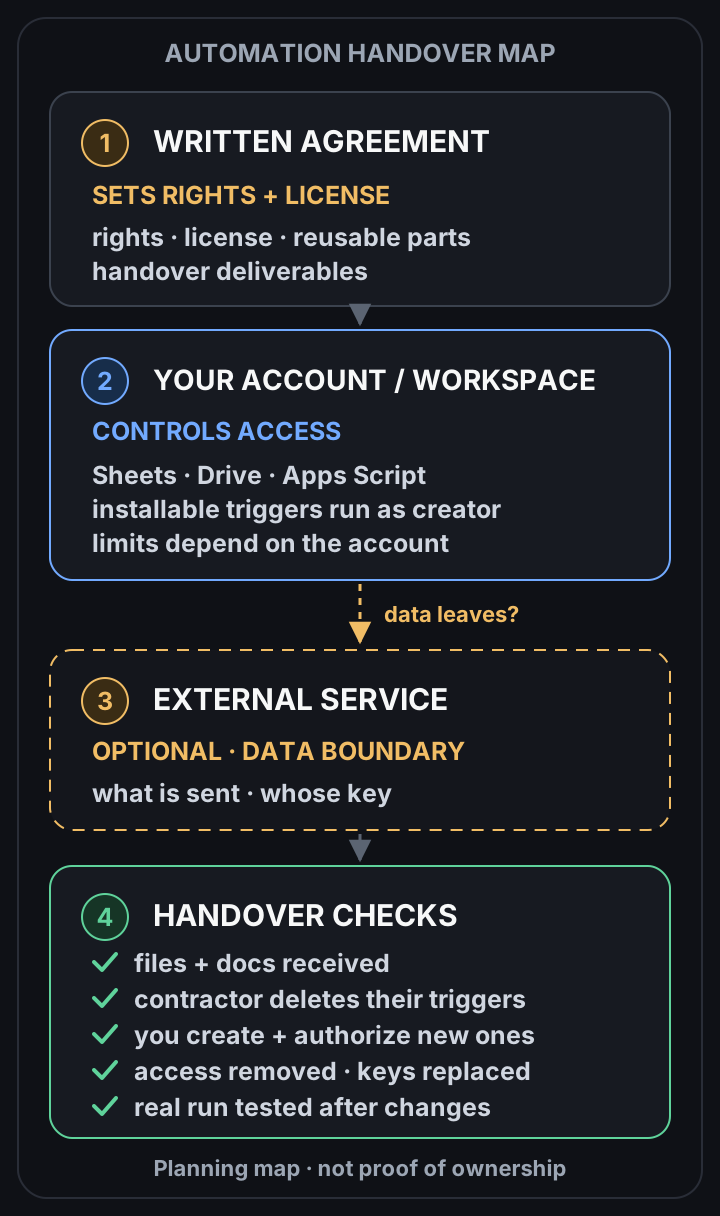
A planning map, not a legal document. It shows where each question gets answered. Where a file lives, or who can open it, does not by itself prove who owns what; that belongs in the agreement. View the full-size diagram.
1. What exactly will you deliver, and how will we accept it?
“An automation that sends the weekly report” is a goal, not a deliverable. Ask the contractor to list what you will actually receive:
- The working files: the spreadsheet, form, or document, and the script project attached to it.
- Short setup notes: what runs, when, what it reads, and what it changes.
- Any settings you must keep, such as sheet names or column headers the script depends on.
Then agree how you will accept it. A simple acceptance test is enough: “Using our own test data, the report is created and sent to the right person, and a bad row is flagged instead of skipped.” Write the test down before work starts so both sides know what “done” means.
2. Is access separate from rights and license in our agreement?
This is where buyers most often get confused.
Access answers: who can open, edit, or run the files today? In Google Apps Script, a script attached to a Sheet, Doc, or Form follows that file’s sharing, and a standalone script project is shared like other Drive files (Google: collaborating on Apps Script projects). Access can be granted and removed at any time.
Rights and license answer a different question: what are you allowed to do with the work, now and later? Can you change it, hand it to another contractor, or use it in a second location? Does the contractor keep the right to reuse general pieces in other projects?
Having the files in your own Drive is good practice, but it does not settle those questions. Put them in the written agreement:
- Who holds the rights to the delivered work, or what license you receive.
- Which parts are reusable components the contractor brought from earlier work, and what you may do with them.
- The list of handover deliverables from question 1.
This article is not legal advice. If ownership or licensing matters to your business, ask someone qualified in your jurisdiction to review the agreement.
3. Where does our data go, and which outside services touch it?
Ask for a plain list of every place your data will travel:
- Which of your files the automation reads and writes.
- Whether any data is sent outside your Google account, for example to an AI model, an email or messaging service, or a payment tool.
- For each outside service: what fields are sent, whose account it runs under, and who holds the key or login.
If the answer is “nothing leaves your account,” write that down too. If something does leave, decide whether it needs to. Sending only the fields the task requires is easier to explain to customers and staff later. If an AI service is involved, read what AI features actually cost and who holds the key before you approve it.
4. Whose account does it run on, and what limits and costs apply?
Automation rules vary by platform. The notes below apply to Google Apps Script installable triggers: those runs use the account that created the trigger, and Apps Script quotas apply to that user. For another platform, ask which account owns the schedule, which identity each run uses, and where its limits apply.
Google states that installable triggers, such as the ones that run on a schedule or when a form is submitted, run under the account of the person who created them. It also states that one account cannot see installable triggers created from another account (Google: installable trigger restrictions). This is about installable triggers only, not simple triggers.
In practice, if the contractor creates installable triggers from their own account, the automation depends on that account and its permissions, and those triggers will not appear in your trigger list. Switching them over takes four steps, in order:
- Ask the contractor to delete the installable triggers they created. You cannot see or remove them yourself.
- From an account your business controls, create the replacement triggers and approve the authorization prompt.
- Remove or reduce the contractor’s access, and replace any keys or logins they controlled.
- After those changes, wait for a real scheduled run, or submit the form with test data, and confirm the result. Running a function by hand from the editor is not evidence that the trigger now runs as your account.
Apps Script quotas differ by account type and may change; if a script goes over a quota, it stops with an error rather than finishing the run (Google: quotas for Google services). Ask the contractor:
- Which account will own the files and triggers after handover?
- Which limits is this automation likely to come close to as your volume grows, and what happens to the work in progress if a run stops partway?
- Which ongoing costs exist, such as outside services billed per use, and who pays them?
Fictional example: a small shop’s order summary runs every morning. After the contractor’s project ends, their account is removed from the shop’s workspace, and the summary stops arriving. The files were in the shop’s Drive the whole time, but the installable trigger had been created from the contractor’s account, so it never appeared in the shop’s trigger list. Running the script by hand had worked, which proved nothing about the trigger. Having the contractor delete their trigger, creating a replacement from the shop’s account, and waiting for one real morning run before sign-off would have caught it.
5. If it breaks, who fixes it, and how do we leave?
Every automation eventually meets a change it was not built for: a renamed column, a new form field, an outside service that changes how it works. Agree in advance:
- Failure notice: how will you know a run failed? An email to a named person is better than finding out from a customer.
- Recovery: can a failed run be safely run again, or does someone need to check for half-finished work first?
- Maintenance: what is covered after launch, how you request a change, and how quickly you can expect a reply.
- Exit: what you receive if either side ends the work, using the deliverables list from question 1.
Before you accept handover, run through the checks at the bottom of the map:
- You have the files and setup notes listed in the agreement.
- The contractor has deleted the installable triggers they created.
- Replacement triggers are created and authorized from an account your business controls.
- The contractor’s access is removed or reduced to what you agreed, and any keys they controlled have been replaced.
- After those changes, a real scheduled run or form submission, using test data, has worked. A manual function run does not count.
Still deciding whether to hire someone at all? Outsource vs build vs SaaS compares the three paths.
Next step
If you would like a second look at a workflow before you hire anyone, send a sanitized sample or a short description of the workflow. Please remove names, customer records, credentials, and any other private data first. A few lines about what goes in, what should come out, and who uses it is enough to start.
Frequently asked questions
- If I can open and edit the script, do I own it?
- Not necessarily. Access tells you who can open, edit, or run the files. Rights and license are set by your written agreement. Ask for both, and get advice for your jurisdiction if ownership matters to you.
- Why does it matter which account created the installable triggers?
- Google says installable triggers run as the account that created them, and one account cannot see installable triggers created from another. Ask the contractor to delete the ones they created, create and authorize replacements from an account your business controls, then remove or reduce contractor access and replace their keys. Confirm a real scheduled run or form submission with test data after those changes. Running a function by hand does not prove the trigger now runs as your account.
- What should a handover include?
- The files and setup notes listed in your agreement; the contractor's installable triggers deleted by the contractor; replacements created and authorized from your business account; contractor access removed or reduced and keys replaced; then a real scheduled run or form submission confirmed with test data.
- 2026.11.08 Job site daily report app: capture work before the drive home
- 2026.11.08 Multi-location inventory spreadsheet: stop missing transfers
- 2026.11.06 Reconcile marketplace payouts with your orders in Google Sheets
- 2026.11.01 What to automate first in a small business office: pick one task
- 2026.10.31 Hiring someone to automate a spreadsheet: 5 questions before you sign You are here
- 2026.10.29 Same order submitted twice at once? Stop duplicate rows in Sheets
- 2026.10.24 Slow Google Sheets script on order intake? Read once, write once
- 2026.10.20 Google Sheets CSV export drops leading zeros: keep IDs intact
- 2026.10.20 Importing orders into Google Sheets without duplicate rows
- 2026.10.16 Google Sheets automation sent the email twice? 6 trigger traps
- 2026.10.16 Stop dragging formulas down in Google Sheets (ARRAYFORMULA)
- 2026.10.15 Filter, total and sort a Google Sheet with one formula (QUERY)
- 2026.10.15 Shift swaps from a phone: one approval, and the roster updates
- 2026.10.14 Google Sheets lookup shows the wrong value: VLOOKUP vs XLOOKUP
- 2026.10.14 Expense app that logs a coffee in two taps and totals in Sheets
- 2026.10.14 Daily check-in app with CSV export you can total in Google Sheets
- 2026.10.13 Stale data on your dashboard: when 'updated' doesn't mean fresh
- 2026.07.28 Tracking staff attendance in Google Calendar: where records break
- 2026.07.26 Google Sheet shared by link: how company data quietly leaks
- 2026.07.23 Form auto-reply emails that annoy customers, and how to fix them
- 2026.07.13 ChatGPT API bill higher than expected? Where the cost leaks
- 2026.06.20 Monthly SaaS bill for a simple workflow: rent it or own a tool?
- 2026.06.19 Adding AI to a work app: what it costs each month, and who pays
- 2026.06.19 Automate repetitive office work in Google Sheets with Apps Script
- 2026.06.16 Field inspection app for a small team: paper checklist to phone
- 2026.06.10 Inventory tracking in Google Sheets for one store: where it stops
- 2026.06.08 Is Google Sheets automation free? No server bill, but plan upkeep
- 2026.06.06 Outsource, DIY or SaaS for one workflow: which costs less?