
- 2026.11.08 Job site daily report app: capture work before the drive home
- 2026.11.08 Multi-location inventory spreadsheet: stop missing transfers
- 2026.11.06 Reconcile marketplace payouts with your orders in Google Sheets
- 2026.11.01 What to automate first in a small business office: pick one task You are here
- 2026.10.31 Hiring someone to automate a spreadsheet: 5 questions before you sign
- 2026.10.29 Same order submitted twice at once? Stop duplicate rows in Sheets
- 2026.10.24 Slow Google Sheets script on order intake? Read once, write once
- 2026.10.20 Google Sheets CSV export drops leading zeros: keep IDs intact
- 2026.10.20 Importing orders into Google Sheets without duplicate rows
- 2026.10.16 Google Sheets automation sent the email twice? 6 trigger traps
- 2026.10.16 Stop dragging formulas down in Google Sheets (ARRAYFORMULA)
- 2026.10.15 Filter, total and sort a Google Sheet with one formula (QUERY)
- 2026.10.15 Shift swaps from a phone: one approval, and the roster updates
- 2026.10.14 Google Sheets lookup shows the wrong value: VLOOKUP vs XLOOKUP
- 2026.10.14 Expense app that logs a coffee in two taps and totals in Sheets
- 2026.10.14 Daily check-in app with CSV export you can total in Google Sheets
- 2026.10.13 Stale data on your dashboard: when 'updated' doesn't mean fresh
- 2026.07.28 Tracking staff attendance in Google Calendar: where records break
- 2026.07.26 Google Sheet shared by link: how company data quietly leaks
- 2026.07.23 Form auto-reply emails that annoy customers, and how to fix them
- 2026.07.13 ChatGPT API bill higher than expected? Where the cost leaks
- 2026.06.20 Monthly SaaS bill for a simple workflow: rent it or own a tool?
- 2026.06.19 Adding AI to a work app: what it costs each month, and who pays
- 2026.06.19 Automate repetitive office work in Google Sheets with Apps Script
- 2026.06.16 Field inspection app for a small team: paper checklist to phone
- 2026.06.10 Inventory tracking in Google Sheets for one store: where it stops
- 2026.06.08 Is Google Sheets automation free? No server bill, but plan upkeep
- 2026.06.06 Outsource, DIY or SaaS for one workflow: which costs less?
What to automate first in a small business office: pick one task
Not sure what to automate first? Pick a recurring office task with clear rules, digital inputs and an owner for the exceptions. A checklist to use before you commission a build.

The office’s automation wish list is long: invoices, intake, the weekly report, reminders. Picking the most annoying one first isn’t always the right call.
Start with a recurring admin task whose usual steps you can explain and whose unusual cases have a clear owner. The best first candidate is not necessarily the most complicated or the most annoying task. It is one you can describe well enough to decide what should happen, including when a person needs to step in. Once you have one, work automation shows how a first build is scoped.
Check the candidate
Choose a task and answer these questions:
- Does it repeat on a real schedule? Note when it happens, whether daily, weekly, monthly, or at another known interval.
- Can you state the normal rule? Describe what starts the task, what happens to an ordinary input, and what output should result.
- Are input and output digital, or can they be made digital? A form, shared file, or email can be an input. For paper, decide who captures the information and how before considering automation.
- Are exceptions and approvals understood? List cases that do not follow the usual rule and the decisions a person must make.
- Is there an accountable owner? Name the role responsible for checking the output, handling failures, and keeping the process current.
A yes to each question makes the task worth assessing, not automatically suitable for every tool. Ask the owner to confirm the workflow before commissioning it.
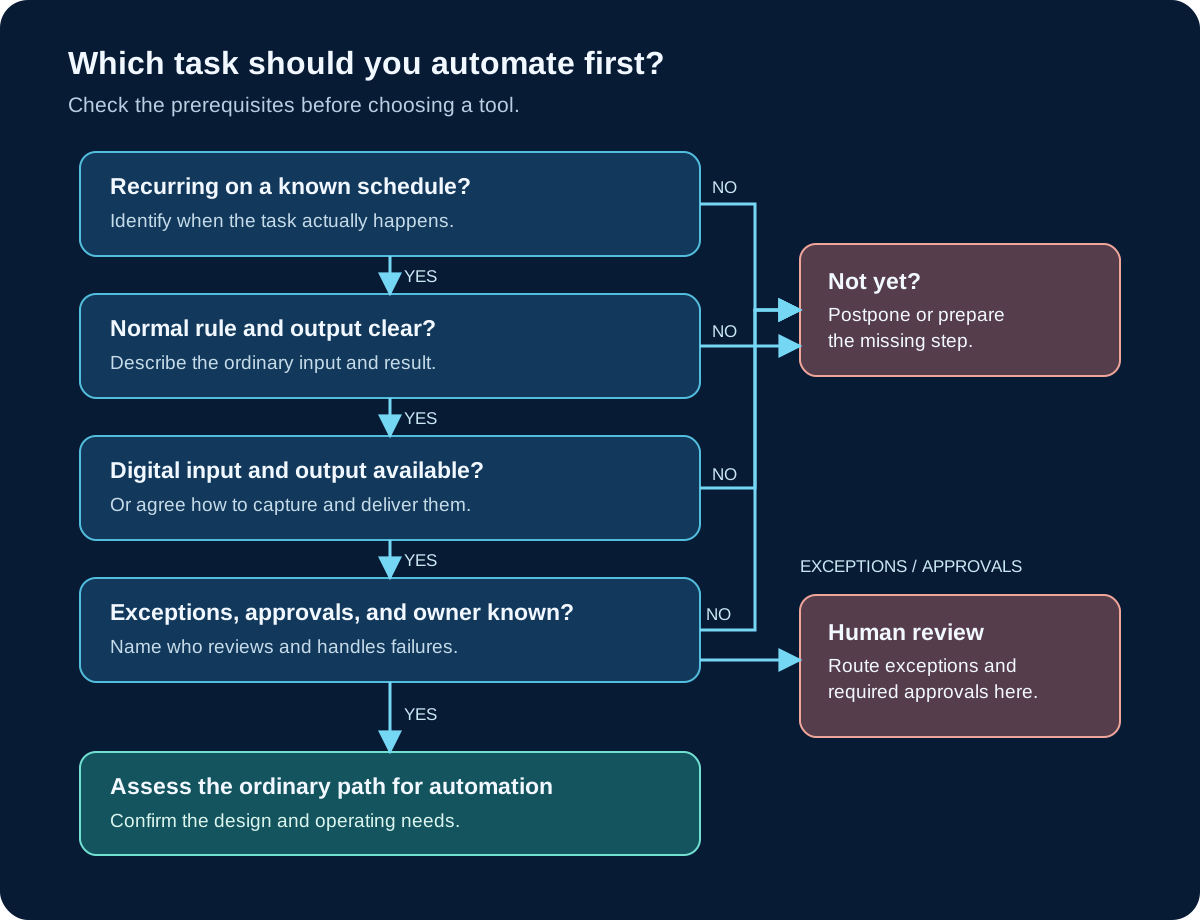
Decision flow: prepare missing steps before automating, and send exceptions and required approvals to a person. View the full-size diagram.
Put the check to work
These are hypothetical workflow examples, not accounts of client projects:
- Form intake: Log a completed form and notify the owner. Send incomplete or unusual submissions to a reviewer instead of treating them as complete.
- Order logging: Record an incoming order in a shared register. Decide how the owner recognizes a duplicate and corrects an entry before placing another order record.
- Stock updates: Record an approved stock movement. Have a person investigate a mismatch rather than silently replacing a count.
- Recurring reports: Gather digital figures into a report for a named reviewer. Flag missing inputs and let the reviewer approve the report before it is shared.
For each example, the exact rule, permissions, and review process depend on the business. Choose a narrow step whose input and output you can inspect.
When to postpone or choose a different design
- One-off work: Consider handling it manually rather than commissioning a workflow that may not recur.
- Judgment-heavy decisions: Keep negotiation, nuanced replies, and other decisions requiring context with a person. A separate intake or logging step may still be suitable.
- Paper-only intake: First agree on a reliable capture step and who performs it; the automation cannot act on information that has not been captured.
- Real-time or high-concurrency requirements: A process that needs immediate updates or many simultaneous operations needs a design assessed for those demands. Do not assume a simple workflow will meet them.
Consider operation, not just the initial build
Ask who will monitor the workflow, update it when the process changes, and respond when it fails. Include connected services and any applicable account, subscription, or maintenance costs in the discussion; do not assume the workflow will operate for free.
If Google Apps Script is being considered, its service limits depend on the account and service and can change. Google says exceeding a quota or limit stops execution with an exception. Check the current Google Apps Script quotas documentation for the actual setup and agree on a failure response.
Worksheet before commissioning
Write down the following, using a sanitized sample with no personal or confidential data:
- Current input: Where does the information arrive, and who enters or captures it?
- Normal rule: What triggers the task, and what should happen in the ordinary case?
- Exceptions and approvals: What needs a different path, and what must a person approve?
- Reviewer and owner: Who checks the result, and who is accountable for the workflow?
- Desired output: What should be produced, where should it go, and who can see it?
- Frequency and volume: When does it run, how much arrives, and can inputs arrive at the same time?
- Duplicates and corrections: How will someone identify a repeat, fix a mistake, and check the corrected record?
- Failure: Who should be notified, what should pause, and how will the owner check and recover the work without repeating an action unintentionally?
Download the editable checklist.
Discuss your workflow
Send a sanitized sample or a short description of the workflow through the contact page. Include the normal path, exceptions, and who would review the result.
Frequently asked questions
- What makes a task a good first automation candidate?
- Look for work that repeats on a known schedule, has a clear normal rule and digital inputs and outputs, and has an owner and a plan for exceptions and approvals.
- Should I automate a task that needs judgment?
- Keep the judgment and any required approval with a person. A clearly defined intake or record-keeping step may still be a candidate.
- What should I prepare before commissioning automation?
- Describe the input, normal rule, exceptions, owner and reviewer, output, frequency and volume, duplicate and correction process, and failure response. Use a sanitized sample.
- 2026.11.08 Job site daily report app: capture work before the drive home
- 2026.11.08 Multi-location inventory spreadsheet: stop missing transfers
- 2026.11.06 Reconcile marketplace payouts with your orders in Google Sheets
- 2026.11.01 What to automate first in a small business office: pick one task You are here
- 2026.10.31 Hiring someone to automate a spreadsheet: 5 questions before you sign
- 2026.10.29 Same order submitted twice at once? Stop duplicate rows in Sheets
- 2026.10.24 Slow Google Sheets script on order intake? Read once, write once
- 2026.10.20 Google Sheets CSV export drops leading zeros: keep IDs intact
- 2026.10.20 Importing orders into Google Sheets without duplicate rows
- 2026.10.16 Google Sheets automation sent the email twice? 6 trigger traps
- 2026.10.16 Stop dragging formulas down in Google Sheets (ARRAYFORMULA)
- 2026.10.15 Filter, total and sort a Google Sheet with one formula (QUERY)
- 2026.10.15 Shift swaps from a phone: one approval, and the roster updates
- 2026.10.14 Google Sheets lookup shows the wrong value: VLOOKUP vs XLOOKUP
- 2026.10.14 Expense app that logs a coffee in two taps and totals in Sheets
- 2026.10.14 Daily check-in app with CSV export you can total in Google Sheets
- 2026.10.13 Stale data on your dashboard: when 'updated' doesn't mean fresh
- 2026.07.28 Tracking staff attendance in Google Calendar: where records break
- 2026.07.26 Google Sheet shared by link: how company data quietly leaks
- 2026.07.23 Form auto-reply emails that annoy customers, and how to fix them
- 2026.07.13 ChatGPT API bill higher than expected? Where the cost leaks
- 2026.06.20 Monthly SaaS bill for a simple workflow: rent it or own a tool?
- 2026.06.19 Adding AI to a work app: what it costs each month, and who pays
- 2026.06.19 Automate repetitive office work in Google Sheets with Apps Script
- 2026.06.16 Field inspection app for a small team: paper checklist to phone
- 2026.06.10 Inventory tracking in Google Sheets for one store: where it stops
- 2026.06.08 Is Google Sheets automation free? No server bill, but plan upkeep
- 2026.06.06 Outsource, DIY or SaaS for one workflow: which costs less?