
- 2026.11.08 Job site daily report app: capture work before the drive home You are here
- 2026.11.08 Multi-location inventory spreadsheet: stop missing transfers
- 2026.11.06 Reconcile marketplace payouts with your orders in Google Sheets
- 2026.11.01 What to automate first in a small business office: pick one task
- 2026.10.31 Hiring someone to automate a spreadsheet: 5 questions before you sign
- 2026.10.29 Same order submitted twice at once? Stop duplicate rows in Sheets
- 2026.10.24 Slow Google Sheets script on order intake? Read once, write once
- 2026.10.20 Google Sheets CSV export drops leading zeros: keep IDs intact
- 2026.10.20 Importing orders into Google Sheets without duplicate rows
- 2026.10.16 Google Sheets automation sent the email twice? 6 trigger traps
- 2026.10.16 Stop dragging formulas down in Google Sheets (ARRAYFORMULA)
- 2026.10.15 Filter, total and sort a Google Sheet with one formula (QUERY)
- 2026.10.15 Shift swaps from a phone: one approval, and the roster updates
- 2026.10.14 Google Sheets lookup shows the wrong value: VLOOKUP vs XLOOKUP
- 2026.10.14 Expense app that logs a coffee in two taps and totals in Sheets
- 2026.10.14 Daily check-in app with CSV export you can total in Google Sheets
- 2026.10.13 Stale data on your dashboard: when 'updated' doesn't mean fresh
- 2026.07.28 Tracking staff attendance in Google Calendar: where records break
- 2026.07.26 Google Sheet shared by link: how company data quietly leaks
- 2026.07.23 Form auto-reply emails that annoy customers, and how to fix them
- 2026.07.13 ChatGPT API bill higher than expected? Where the cost leaks
- 2026.06.20 Monthly SaaS bill for a simple workflow: rent it or own a tool?
- 2026.06.19 Adding AI to a work app: what it costs each month, and who pays
- 2026.06.19 Automate repetitive office work in Google Sheets with Apps Script
- 2026.06.16 Field inspection app for a small team: paper checklist to phone
- 2026.06.10 Inventory tracking in Google Sheets for one store: where it stops
- 2026.06.08 Is Google Sheets automation free? No server bill, but plan upkeep
- 2026.06.06 Outsource, DIY or SaaS for one workflow: which costs less?
Job site daily report app: capture work before the drive home
A job site daily report app lets a field crew log work from a phone while the day is still fresh, instead of rewriting paper notes and chat photos at night. Here is a workflow pattern to consider.
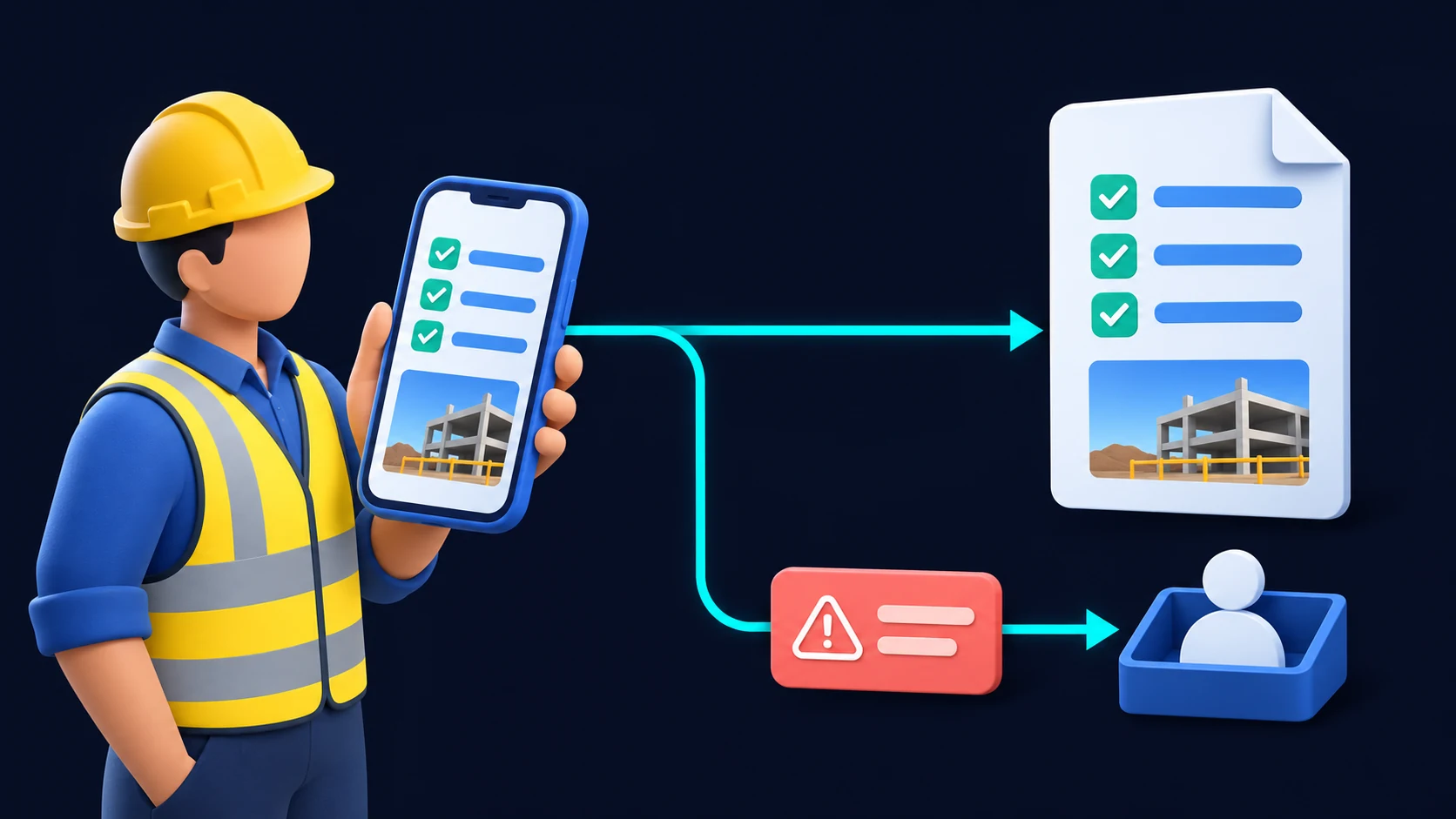
How does a phone entry become a daily report after review?
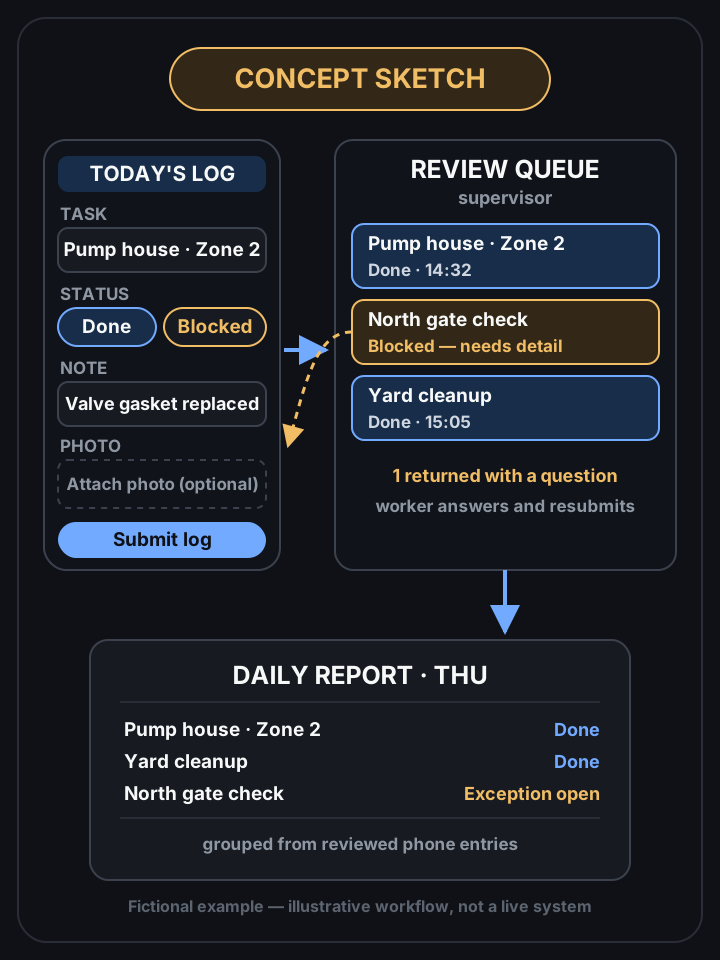 View full-size diagram
The crew writes the day’s work on paper, shares photos in chat, and somebody retypes them into a report after the shift. A job site daily report app can capture each task on a phone during the workday, so reviewed entries can be gathered into the end-of-day report.
The diagram above is an illustrative workflow concept — not a working demo, not a live client system, and not a measured result. It shows one possible shape for a build like this: a worker logs a task on-site, a supervisor reviews the queue, an unclear entry returns as an exception, and reviewed entries can be grouped into a daily report. This article describes a general workflow, not a specific customer’s system.
What is the difference between a work order and a daily log?
This is the distinction most paper systems blur, and it is the first thing to get right.
A work order is planned work: what should happen, where, and who is supposed to do it. A daily log is what actually happened: which tasks were completed, which were blocked, and why. The daily report at the end of the day is a reconciliation of the two — planned items that have no matching log entries are the open questions, not just missing paperwork.
When the two are stored as separate records that reference each other, the app can answer both directions: “what was the crew supposed to do today” and “what did they actually report.” When they are one blob of text, neither question is easy.
What does a phone entry need to capture on site?
Keep the field set small enough to fill in with gloves on, standing next to the work. A practical set for a first version:
- Task — picked from today’s work orders, not typed freehand, so entries line up with the plan.
- Status — a short list like done, in progress, blocked. “Blocked” deserves its own value, because that is the entry a supervisor needs to see first.
- Short note — one line for what a reader needs to know that the status can’t say.
- Optional photo — for work that needs visual proof or context.
This is a compact starting field set. Keep required inputs to the information a reviewer needs; add fields when the current work log calls for them.
What happens after the worker taps submit?
Each entry moves through a small set of states that everyone understands the same way:
- Submitted — the entry is saved and out of the worker’s hands. It should not be silently editable after this point.
- In review — it sits in the supervisor’s queue with the day’s other entries.
- Exception — something is unclear: a missing detail, a status that doesn’t match the note. The supervisor sends it back with a question instead of guessing.
- In the daily report — reviewed entries roll up into the day’s report, grouped by task or crew.
The exception path is what separates this from a chat thread. In a group chat, a confusing photo gets a reply that scrolls away. In a review queue, it stays open until someone resolves it.
How should photos be attached and kept?
A photo with no context is just another chat image. Each photo should stay bound to the entry it was taken for — which task, which status, which worker, what time. That binding is what makes it evidence instead of clutter.
Retention is a decision, not a default. How long photos are kept, who can see them, and whether they can contain faces, plates or paperwork the client didn’t ask to store — those are questions to answer before building, not settings to discover later. The same goes for what happens when an entry needs a corrected photo: replace with history, or add a new version.
Who can see and edit what?
Three roles cover most small crews: the worker who submits, the supervisor who reviews and closes the day, and whoever reads the report. Decide early whether workers can edit an entry after submission (usually: not silently — request a change through the exception path, or edit only while still a draft), whether supervisors can correct an entry themselves and leave a trace, and how duplicate or late entries are handled.
Duplicates deserve a rule before they happen: two submissions for the same task and day should flag each other, not quietly double-count. Late entries — yesterday’s work logged this morning — should be marked as late rather than blended in, or the daily report stops meaning “what happened that day.” Someone still has to refresh the work-order list, close review exceptions, and check late entries. That ongoing care needs an owner; otherwise, phone entry gets faster while unchecked records pile up.
What if the site has no signal?
Treat connectivity as a design constraint, not an error state. Decide whether entries can remain as local phone drafts and how unsent items are shown. Specify how a submitted record should survive a dead zone and how a retry should avoid duplicates. Both are implementation requirements to build and test, not behavior a mockup can prove.
What should you write down before asking for a build?
If this matches how your crew works, the useful prep is short: today’s work order or job sheet format, who submits and who reviews, what the end-of-day report currently looks like, and the rules for photos, edits and late entries. A sanitized sample of one real day’s notes — names and client details removed — says more than a feature list.
I build these as small mobile web apps. See mobile work apps for how that work is scoped, or automation if your bottleneck is turning collected entries into reports and follow-ups. For related patterns, read the field inspection app pattern and the shift swap approval roster.
Send a sanitized sample of a work order or daily report, or describe who submits, reviews, and reads it. Remove company, client, and worker names, then contact me to map the workflow.
Frequently asked questions
- Does a daily report app need a constant internet connection on site?
- Plan for dead zones when choosing the workflow. One option is to keep entries as local phone drafts and send them when a connection returns. Specify how submitted records should survive connection loss and how retries should avoid duplicates, then implement and test those rules.
- What is the smallest useful version of a job site log?
- A compact starting set is the related work order, a status such as done or blocked, a short note, and an optional photo. Whether that covers a team's reporting needs depends on its review and recordkeeping rules.
- Can Google Sheets hold a field team's daily logs?
- It can be one option to evaluate for a small team's workflow. A possible design stores each entry as a row and links its photo from there; whether that fits depends on simultaneous editing, photo volume, access roles, and retention rules. Set those requirements before choosing where records and photos belong.
- 2026.11.08 Job site daily report app: capture work before the drive home You are here
- 2026.11.08 Multi-location inventory spreadsheet: stop missing transfers
- 2026.11.06 Reconcile marketplace payouts with your orders in Google Sheets
- 2026.11.01 What to automate first in a small business office: pick one task
- 2026.10.31 Hiring someone to automate a spreadsheet: 5 questions before you sign
- 2026.10.29 Same order submitted twice at once? Stop duplicate rows in Sheets
- 2026.10.24 Slow Google Sheets script on order intake? Read once, write once
- 2026.10.20 Google Sheets CSV export drops leading zeros: keep IDs intact
- 2026.10.20 Importing orders into Google Sheets without duplicate rows
- 2026.10.16 Google Sheets automation sent the email twice? 6 trigger traps
- 2026.10.16 Stop dragging formulas down in Google Sheets (ARRAYFORMULA)
- 2026.10.15 Filter, total and sort a Google Sheet with one formula (QUERY)
- 2026.10.15 Shift swaps from a phone: one approval, and the roster updates
- 2026.10.14 Google Sheets lookup shows the wrong value: VLOOKUP vs XLOOKUP
- 2026.10.14 Expense app that logs a coffee in two taps and totals in Sheets
- 2026.10.14 Daily check-in app with CSV export you can total in Google Sheets
- 2026.10.13 Stale data on your dashboard: when 'updated' doesn't mean fresh
- 2026.07.28 Tracking staff attendance in Google Calendar: where records break
- 2026.07.26 Google Sheet shared by link: how company data quietly leaks
- 2026.07.23 Form auto-reply emails that annoy customers, and how to fix them
- 2026.07.13 ChatGPT API bill higher than expected? Where the cost leaks
- 2026.06.20 Monthly SaaS bill for a simple workflow: rent it or own a tool?
- 2026.06.19 Adding AI to a work app: what it costs each month, and who pays
- 2026.06.19 Automate repetitive office work in Google Sheets with Apps Script
- 2026.06.16 Field inspection app for a small team: paper checklist to phone
- 2026.06.10 Inventory tracking in Google Sheets for one store: where it stops
- 2026.06.08 Is Google Sheets automation free? No server bill, but plan upkeep
- 2026.06.06 Outsource, DIY or SaaS for one workflow: which costs less?